Help Center Transactions
Auto-categorize transactions
Treasury uses AI to categorize new transactions, and you choose how much it applies in Settings → Auto-Categorize.
Updated
How Treasury categorizes new transactions
Treasury predicts a category for each new transaction soon after it arrives. It only ever picks one of your own categories.
- If at least 10 of a merchant’s past transactions are in one category, and none are in another, Treasury predicts that category.
- Otherwise an outside AI service, TypeSafe, predicts one. It looks at the merchant, the amount and whether money went in or out. It also sees your bank’s own label, how you filed the merchant before and your categories.
Your auto-categorize mode decides which predictions Treasury applies. It never replaces a category you’ve set yourself. Only your first 100 categories, in alphabetical order, can be predicted.
Before sending a transaction to the AI model, Treasury tries to remove personal details, such as people’s names in payments, card numbers and email addresses. Your category names, their descriptions and the merchants you’ve filed under them, with counts and average amounts, are sent as they are. See Privacy and data security.
Choose All, Confident only or None
Settings → Auto-Categorize decides how many of the AI’s choices Treasury applies for you. Select a mode and it saves straight away.
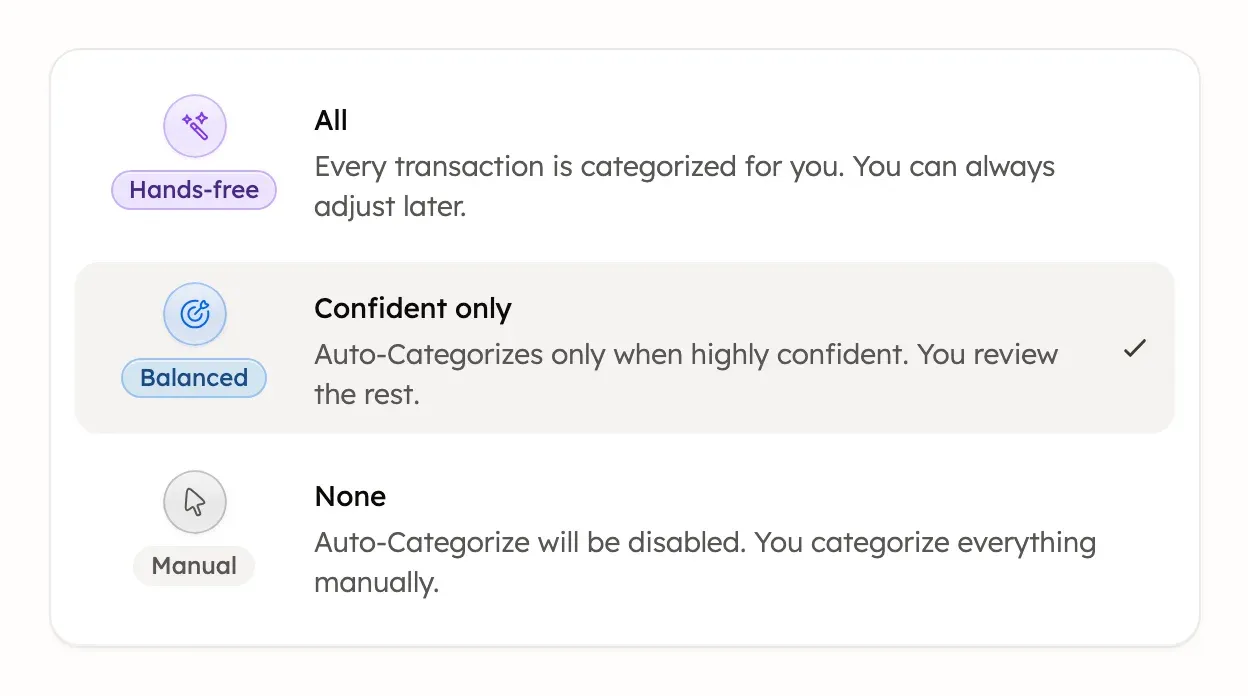
- All applies a category to every transaction, even when the AI is unsure. You may need to fix more mistakes.
- Confident only applies a category only when the AI is highly confident. New accounts start on All, but older accounts may be on Confident only.
- None applies nothing. You categorize every transaction yourself. Treasury still asks the AI model for predictions, and no setting stops that.
A new mode applies to transactions that arrive afterwards. Transactions that already have a category keep it.
Categorize existing transactions
Settings → Auto-Categorize shows a note when uncategorized transactions already have predictions ready. That happens after you switch away from None, for example.
- In Settings → Auto-Categorize, choose All or Confident only.
- If the note appears, select Apply predictions.
All applies every prediction, and Confident only applies only the confident ones. Only uncategorized transactions change. There’s no undo for the whole batch, but you can change any transaction’s category afterwards.
If you want categorization rules
Treasury has no rules you write yourself, such as “always put Uber in Transport”. It learns from how you categorize instead.
- Categorize a merchant the same way each time. Once 10 of its transactions are in one category, and none in another, Treasury predicts that category for new ones.
- To fix many transactions at once, select them in Transactions, then select Categorize. See Categorize many transactions at once.
If transactions stay uncategorized
With Confident only or None, Treasury leaves some transactions uncategorized for you. They also stay uncategorized if you have no categories yet. Transfers between your own accounts are never predicted or filled in by Apply predictions. See Transfers between your accounts.
To work through them, select Turbo-Review in Transactions. It shows one uncategorized transaction at a time. See Categorize one at a time in Turbo-Review.
To have Treasury categorize everything, choose All in Settings → Auto-Categorize.
Make auto-categorize more accurate
The Accuracy card in Settings → Auto-Categorize shows how auto-categorizing is doing for you over the last 90 days. Figures appear only once Treasury has made predictions in that time.
- Auto-applied is the share of predictions Treasury applied for you.
- Accuracy is the share of those you didn’t change afterwards. High conf. accuracy is the same for the most confident ones.
- Tips for better accuracy checks your setup, such as categories without descriptions.
Clear, distinct categories help most. Add a description to similar categories in Settings → Categories, and fix wrong categories when you see them. See Create, edit or merge categories.
Was this helpful?
Related guides
Questions about your own money?
Treasury AI can look through your accounts, budgets and transactions and answer in plain language. Something not working? Email support@treasury.sh.