Help Center Transactions
Create, edit or merge categories
Create, edit or delete income, expense and savings categories in Settings → Categories, and merge two by deleting one into the other.
Updated
Choose income, expense or savings
Every category in Settings → Categories has a type: Income, Expense or Savings. The type decides which budget total the category counts toward: Income, Expenses or Savings.
- Income is for money you earn, such as salary or interest.
- Expense is for spending, such as rent, food or bills.
- Savings is for money you set aside, such as transfers to a savings account.
A category’s type doesn’t change a transaction’s direction. A refund in an expense category is still money coming in. Categories have no hide setting, but a budget only counts the categories you choose for it. To leave one out, select Edit budget and untick it in Categories. To keep a single transaction out, exclude it instead.
Transfers between your own accounts aren’t categorized automatically. To see how they count, read Transfers between your accounts.
Create a category
New accounts start with a set of starter categories. You can change them or add your own.
- In Settings → Categories, select New Category (the +).
- In Create Category, enter a Name of up to 50 characters.
- Choose a Type and a Color.
- Optionally add a Description, then select Create.
Each category needs its own name. A new category isn’t added to your existing budgets. Its transactions don’t count in a budget until you add it with Edit budget.
A description helps Treasury’s automatic categorizing tell similar categories apart, so “Groceries and household supplies” works better than none.
Edit a category
You can rename a category or change its type, color or description at any time.
- In Settings → Categories, find the category. The tabs filter by Income, Expense or Saving.
- Open its Open menu (the ⋯), then select Edit.
- Make your changes in Edit Category, then select Save Changes.
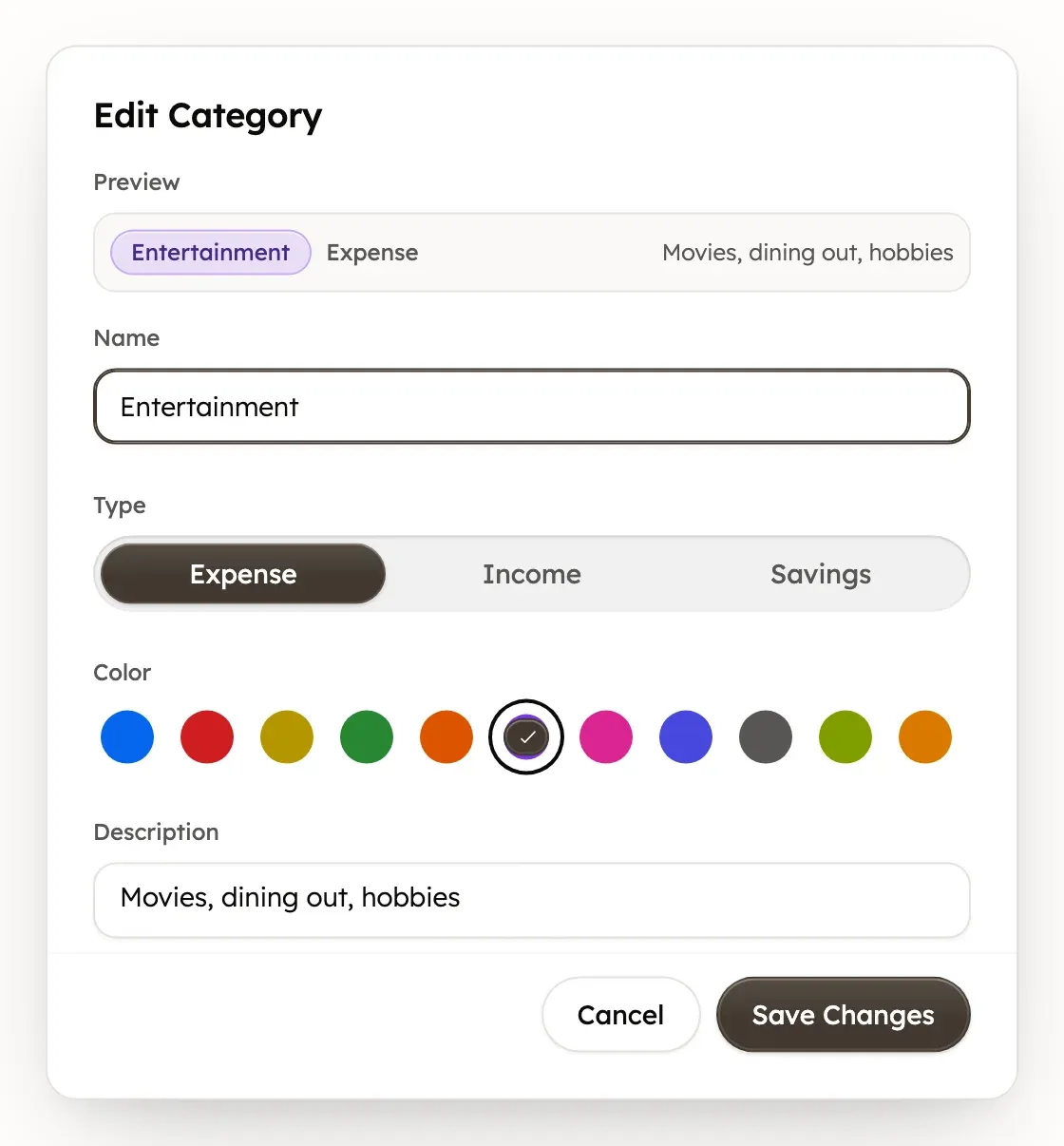
Its transactions keep the category under its new name. Changing the type moves the category’s amounts to a different total in every budget that includes it.
Delete a category
- In Settings → Categories, open the category’s Open menu (the ⋯), then select Delete.
- If the category has transactions, choose Make transactions uncategorized or Reassign to another category.
- Select Make Uncategorized & Delete, or pick a category and select Reassign & Delete. A category with no transactions shows Delete Category.
Your transactions are never deleted, only their category changes. The category also leaves every budget that included it, along with the amount you planned for it. Recurring items in that category become uncategorized.
To delete several at once, tick their boxes and select Delete. Confirm with Delete 2 Categories, for example. Their transactions all become uncategorized.
Deleting a category can’t be undone. A new category with the same name won’t bring back its budget amounts.
Merge two categories
Treasury has no merge button. To combine two categories, delete the one you no longer want and move its transactions to the other.
- In Settings → Categories, open the menu of the category to remove, then select Delete.
- Choose Reassign to another category and pick the category to keep.
- Select Reassign & Delete.
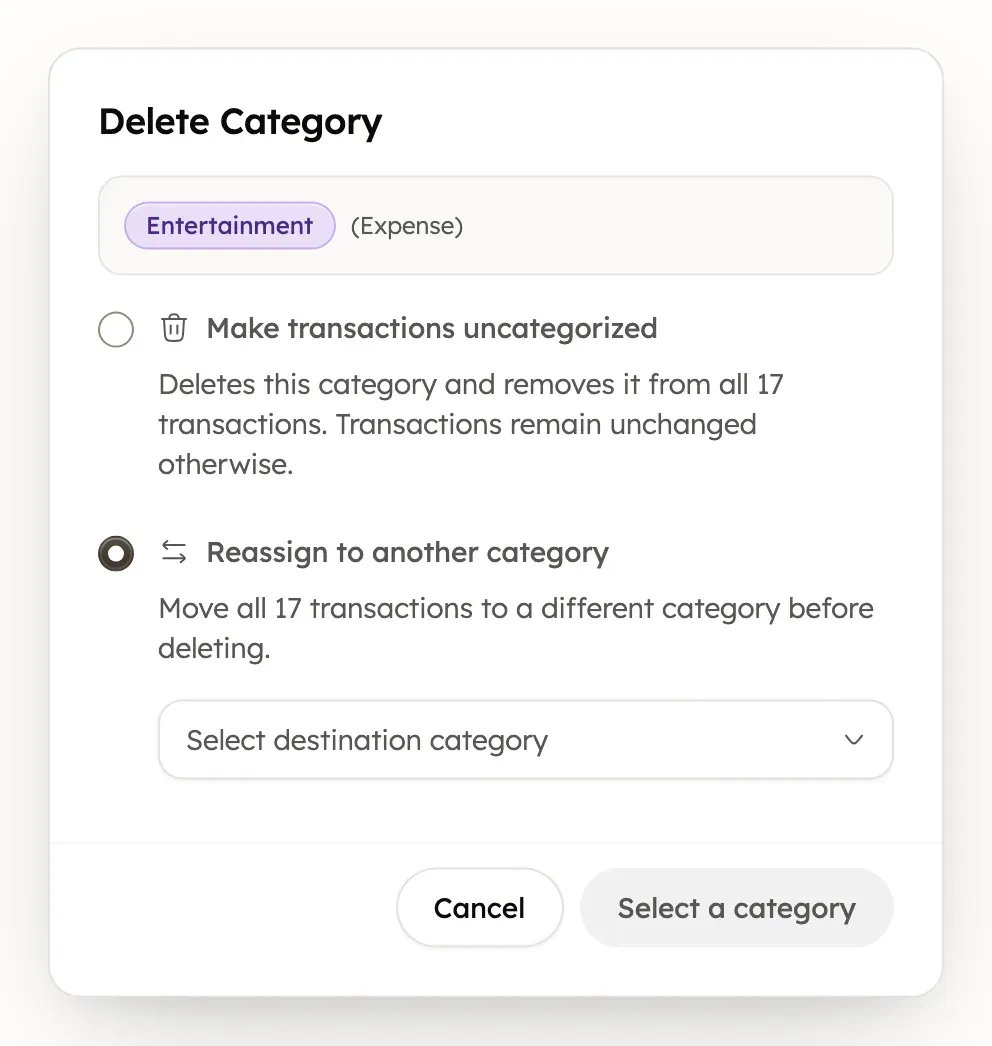
You can only reassign to a category of the same type, such as expense to expense. Budgets don’t move the planned amount over, so add it to the kept category with Edit budget. Recurring items in the deleted category become uncategorized, so set their category again in Recurring.
Change a transaction’s category
A transaction’s category is set on the transaction itself, in Transactions. To change one, see Change the category. To change many at once, see Edit many transactions at once.
Treasury can also categorize new transactions for you. To choose how much it does, see Auto-categorize transactions.
Treasury AI can explain your spending by category, but it can’t create, change or delete categories. You can also open Help & feedback at the bottom of the sidebar, or in Settings on a phone.
Was this helpful?
Related guides
Questions about your own money?
Treasury AI can look through your accounts, budgets and transactions and answer in plain language. Something not working? Email support@treasury.sh.