Help Center Account and billing
Notifications, emails and widgets
The Treasury iPhone app sends budget, bank and payment alerts you choose in Settings → Preferences, and Treasury emails you about sign-in, billing and setup.
Updated
Turn notifications on or off
Treasury’s notifications are push notifications to the Treasury app on iPhone or iPad. The web app can’t send them.
- In the Treasury app, open Settings → Preferences.
- Under Push notifications, turn on Notifications. Your iPhone asks to allow notifications from Treasury.
- Under What gets sent, turn each alert on or off.
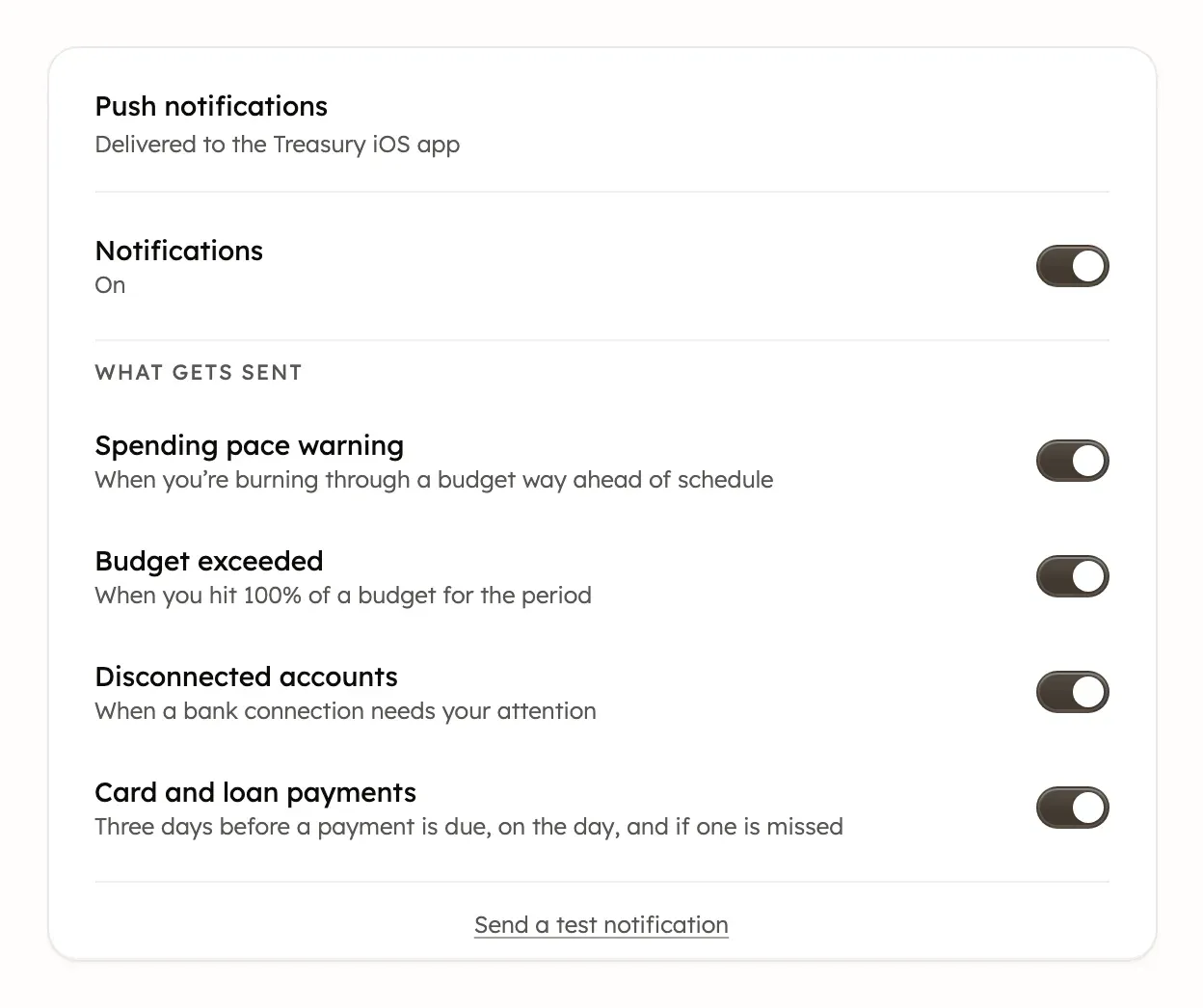
In the iPhone app, Notifications shows off until your iPhone allows Treasury. If you blocked it, Treasury says Notifications are off in iOS Settings: select Open Settings and allow notifications. To stop every alert, turn Notifications off.
When budget alerts are sent
Spending pace warning and Budget exceeded watch each of your budgets and the categories in them.
- Spending pace warning: a budget’s expenses reach 80% of what you budgeted. A single category also sends one at 80%, but only before 70% of the period has passed.
- Budget exceeded: a budget’s expenses, or one of its categories, reach 100%.
Each alert comes once per budget or category each period. Treasury checks after each bank sync and after you change a transaction. Tapping an alert opens the budget for that period.
While any of a budget’s spending isn’t converted, the alerts for the whole budget wait. Alerts for its categories still come, as long as all of that category’s spending is converted.
When a bank needs you to reconnect
Disconnected accounts sends Reconnect your account when a bank sync finds that your bank needs you to sign in again. It usually comes at most once a day for each bank. Tapping it opens Settings → Connections, where you can reconnect the bank.
Card and loan payment reminders
Card and loan payments reminds you about payments on connected credit cards and loans that have a due date:
- three days before the due date;
- on the due date;
- once in the three days after the due date, if no payment was recorded.
The first two reminders don’t come once you’ve paid the minimum or the statement balance since your last statement. No reminder comes if your bank’s card or loan details are more than 3 days old.
A reminder that arrives before noon or after 9pm US Eastern time comes without a sound. Tapping one opens the card or loan. Treasury can’t make the payment for you. Treasury doesn’t send reminders for recurring bills or subscriptions.
Send a test notification
Send a test notification checks that alerts reach your device. It appears under Push notifications while Notifications is on.
- Open the Treasury app and turn on Notifications first, so your device is registered.
- Select Send a test notification. Test notification sent appears, and the alert should arrive within seconds.
If it fails, check that iPhone Settings → Notifications → Treasury allows notifications.
Emails about sign-in and billing
Treasury sends these emails whenever they apply, and they can’t be turned off:
- Sign-in and account: sign-in codes, the code to verify your email, email-change links, and a notice when a passkey is added. Treasury also emails you if it links your Google account by itself.
- Trial started: your plan, price and the day the trial ends.
- Cancellation: confirms you canceled a trial or membership, and when access ends.
- Membership ended: when a paid membership ends at once.
The trial, cancellation and membership emails go only to members who pay on the web. Polar, Treasury’s payment provider, also emails them receipts, a reminder before the trial ends, and notices when a payment fails or access ends. If you pay through the App Store, Apple sends the billing emails instead. See Plans, trial and billing.
Tips and setup emails
Treasury sends a few emails to help you get set up, each once at most:
- Welcome: what Treasury does and how the trial works, when you create your account without starting a trial.
- Help connecting a bank: two days into a trial, if you haven’t connected a bank yet.
- Ideas for Treasury AI: a day after a paid membership starts, with a question to ask it about saving money.
- Uncategorized transactions: when more than 25 are waiting and Auto-Categorize is set to Confident only or None.
To stop them, select the unsubscribe link at the bottom of one. You can reply to a tips or billing email to reach Treasury. For other ways, see Contact support.
iPhone widgets
Treasury has two small Home Screen widgets for iPhone and iPad, and they need iOS 17 or later.
- Net Worth shows your latest net worth and how it changed over the last 30 days.
- Budget Performance shows your primary budget’s Income, Expenses and Savings against what you budgeted.
To add one, touch and hold your Home Screen. On iOS 18 or later, tap Edit, then Add Widget. On iOS 17, tap +. Then choose Treasury.
Widgets update each time you open the Treasury app, and about once a day otherwise. Open to set up your widget. means the widget isn’t signed in, so open the app. Signing out of Treasury anywhere, even on a computer, signs out the widgets on every iPhone and iPad until you open the app there. Set up a budget in Treasury. means you have no primary budget.
Was this helpful?
Related guides
Questions about your own money?
Treasury AI can look through your accounts, budgets and transactions and answer in plain language. Something not working? Email support@treasury.sh.