Help Center Budgets
Create a budget
Select New Budget in Budgets, then choose its details, categories and amounts in four short steps.
Updated
Set up a new budget
A new budget takes four steps: Details, Categories, Allocate and Review. Select Next to move between them.
- In Budgets, select New Budget.
- In Details, enter a budget name and choose its type.
- In Categories, choose the income, expense and saving categories the budget tracks.
- In Allocate, enter how much you plan for each category.
- In Review, check everything, then select Create Budget.
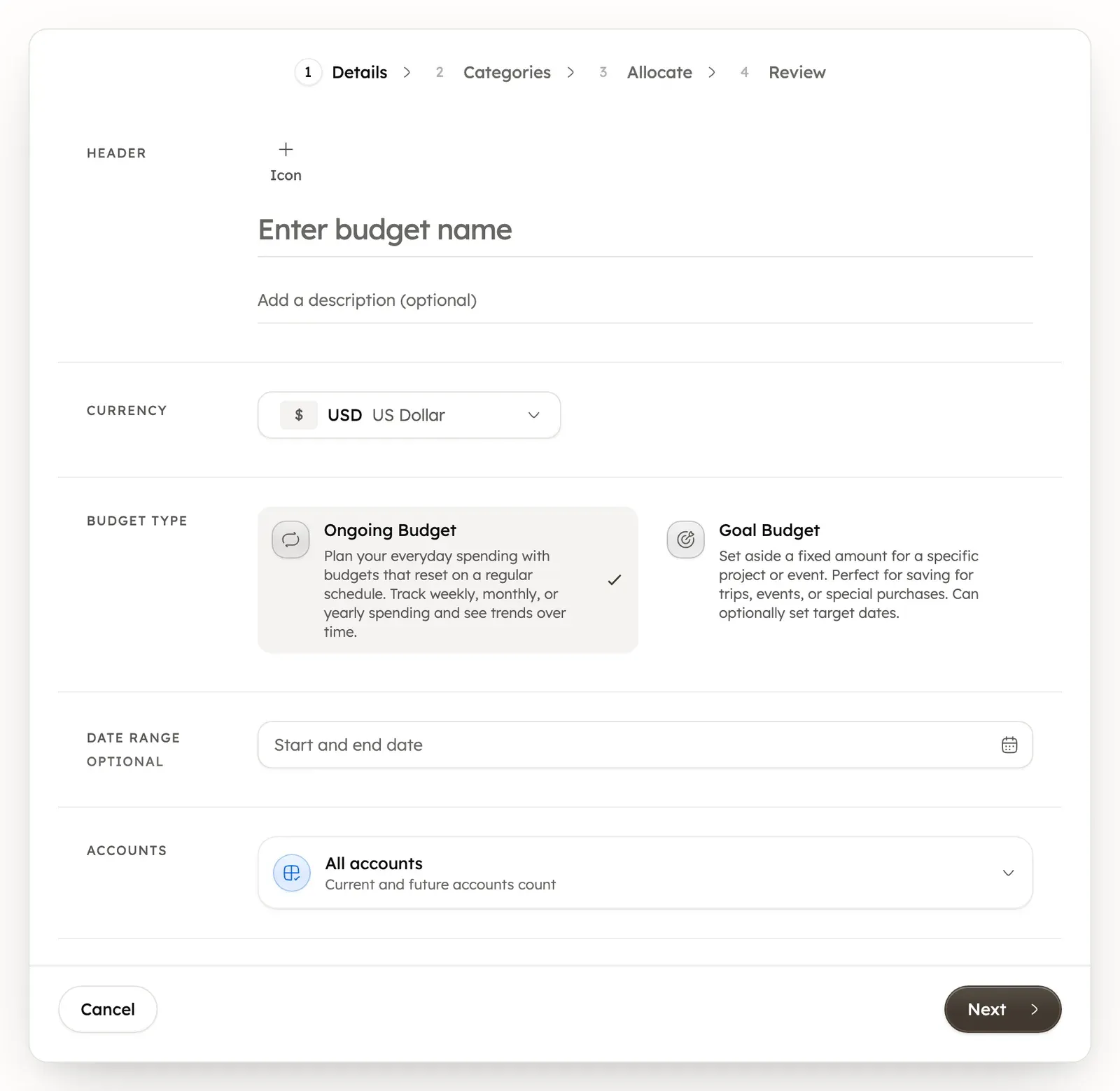
Choose an ongoing or a goal budget
In the Details step, Budget Type decides how the budget works:
- An Ongoing Budget repeats in every period. Use it for everyday spending. You set each amount per week, month or year, and can view any week, month or year.
- A Goal Budget sets aside a fixed amount for one project or event, such as a trip. It can have target dates.
Choose what the budget includes
In the Details step, a budget can include all of your accounts, only specific accounts, or all but specific accounts. It can also include only transactions with chosen tags.
A budget only counts transactions that match these choices. To see how that affects its totals, read Budget totals explained.
Was this helpful?
Related guides
Questions about your own money?
Treasury AI can look through your accounts, budgets and transactions and answer in plain language. Something not working? Email support@treasury.sh.