Help Center Recurring
Find subscriptions to cancel
List your subscriptions in Recurring, spot price rises, ask Treasury AI for a Subscription audit, cancel with each company, then mark the item ended.
Updated
1. Find your subscriptions in Recurring
Recurring lists every bill, subscription and paycheck Treasury tracks.
- To find one, type its name in Search recurring….
- To narrow the list, select Filter (the funnel). Choose from the Categories, Accounts or Frequency tab.
- Category Breakdown shows the monthly cost of your recurring bills in each category, and its share of the total. On a phone, it’s at the end of the page.
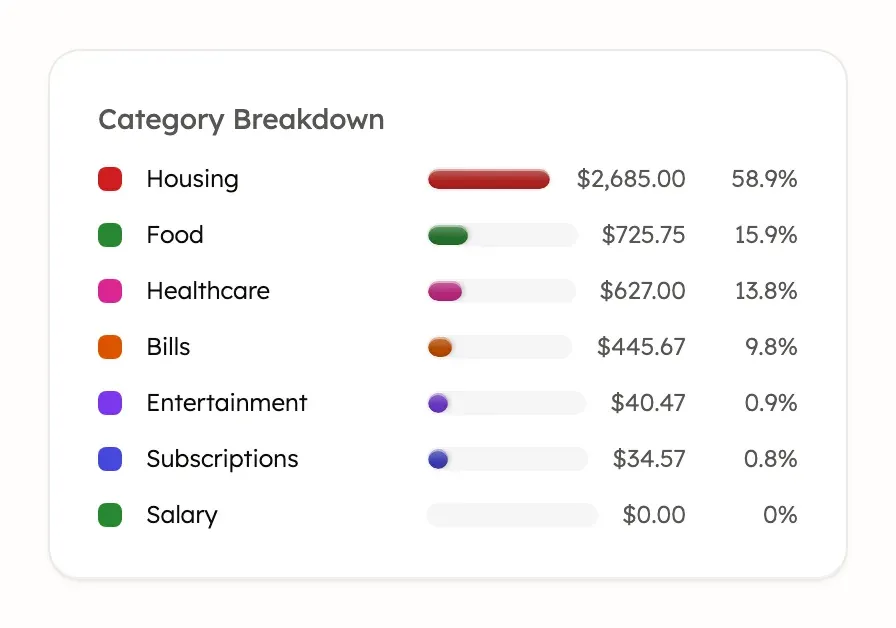
Some detections wait in Recurring → Review before they appear in the list. See Review detected bills. For what the monthly totals count, see the calendar and totals.
2. Spot price rises from the red badges
In Recurring, a red badge with an up arrow beside an item means its latest charge was higher than the one before. The badge shows by how much. A green badge with a down arrow means the price fell.

In Recurring, the badge shows when the change is more than $0.50 and more than 5%. The item’s own page shows any change over $0.50, with the old price and the percent, such as “Up $2.50 from $12.99”. Biweekly and semi-monthly items never show a badge, because their amounts vary too much. A Possibly inactive badge replaces the price badge.
3. Ask Treasury AI for a Subscription audit
Treasury AI can review your subscriptions with you. In a new chat on the Treasury AI page, select Subscription audit, or ask in your own words, such as “Audit my subscriptions”. See Start a chat.
Subscription audit asks Treasury AI to list your active subscriptions, total their monthly cost and flag any you might cancel. You can ask follow-up questions, such as “How much do these cost me a year?” Treasury AI can’t cancel anything for you.
4. Cancel the subscription with the company
Treasury can’t cancel a subscription for you yet. Cancel where you pay: on the company’s own account page, or in Apple’s or Google Play’s subscription settings if they bill you.
Treasury AI can search the web for the company’s current cancellation steps and walk you through them. Ask it, for example, “How do I cancel Disney+?” Read more in If a subscription stopped or you canceled it.
5. Mark the item ended in Recurring
After you cancel, mark the item ended in Recurring so it leaves your totals and calendar. Its history and linked payments stay. See Pause, end or delete an item.
If one more charge is still due, wait until it posts. If a charge comes after that, see If you’re charged after canceling.
If you’re charged after canceling
When a new charge matches an item you marked ended, the item shows Activity resumed on the Inactive tab of Recurring → Review. See See ended and dismissed items.
Check with the company that the cancellation went through. If it did, ask your bank about the charge. To track the item again, restore it.
Was this helpful?
Related guides
Questions about your own money?
Treasury AI can look through your accounts, budgets and transactions and answer in plain language. Something not working? Email support@treasury.sh.