Help Center Transactions
Edit, split or delete a transaction
Open a transaction in Transactions to change its details, split a bill or exclude it, and restore deleted ones from Trash within 30 days.
Updated
Open a transaction
Every change starts from the transaction in Transactions.
- On a computer, select Open Menu (the ⋯) at the end of the row, then Edit. On a phone, tap the transaction.
- Make your changes, then select Confirm. Cancel closes without saving.
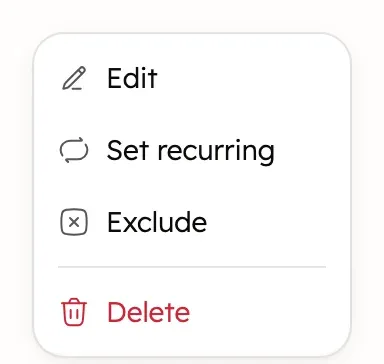
On a computer, you can also select the category in a row and pick another. That saves straight away.
Change the category, amount, name, date or notes
A transaction’s edit window has a button for each detail. Each opens a small box. On a phone, select Confirm in the box; on a computer, select outside it. Your change is saved when you select Confirm at the bottom of the window.
- Category: select a category. Select it again to clear it.
- Edit amount (the coins): type a New Amount and choose Out or In. You can also change the currency. Original Amount shows what your bank sent.
- Rename transaction (the T): type a New Name.
- Edit date (the calendar): pick a day.
- Edit notes: type a note for yourself.
- Tags: select Add tag (the +). See Tag transactions.
When your bank later updates a transaction, Treasury keeps your name, amount, currency, category, notes, tags and exclusion. The date follows the bank’s, even one you set yourself. If your bank removes a transaction, Treasury removes it too, without keeping it in Trash.
Split a shared bill
Treasury can’t split one transaction into several transactions or categories. Quick Split changes the amount to your share instead, so only your part counts.
- Open the transaction and select Edit amount (the coins).
- Under Quick Split, select 50%, 33% or 25% of the original amount.
- To ask a friend for the same share, select Request on Venmo (the Venmo logo, or Request on a phone). Venmo opens with the amount filled in.
- Close the box (Confirm on a phone), then select Confirm to save.
The Venmo request only appears for US dollar transactions. Treasury doesn’t send or request money itself.
Exclude a transaction from your budgets
An excluded transaction stays in your list but doesn’t count toward budget totals. It also leaves Turbo-Review.
- In Transactions, select Open Menu (the ⋯) on the row.
- Select Exclude. It saves straight away, and the row shows a crossed-out box beside the name.
On a phone, tap the transaction, select Exclude from calculations, then Confirm.
To count it again, select Include in the same menu. On a phone, tap the transaction, select Include in calculations, then Confirm. A transaction has no Exclude from Budget button: that name belongs to a transfer setting. See Budget totals explained for what totals count.
Edit many transactions at once
On a computer, you can change many transactions together. Phones don’t show the tick boxes.
- In Transactions, tick the box beside each transaction. Hold Shift to tick a run of rows, or tick a date to select that whole day.
- In the bar that shows how many rows are selected, choose Set Date, Tag, Categorize or Delete.
A selection covers only the page you’re on. Tag replaces each transaction’s tags with the ones you pick. Applying it with none picked removes all their tags. There’s no bulk exclude.
Delete a transaction
Deleting moves a transaction to Trash. It stops counting toward your budgets, and nothing changes at your bank.
- In Transactions, select Open Menu (the ⋯) on the row, then Delete. On a phone, tap the transaction, then select Delete transaction (the bin).
- Select Delete to confirm.
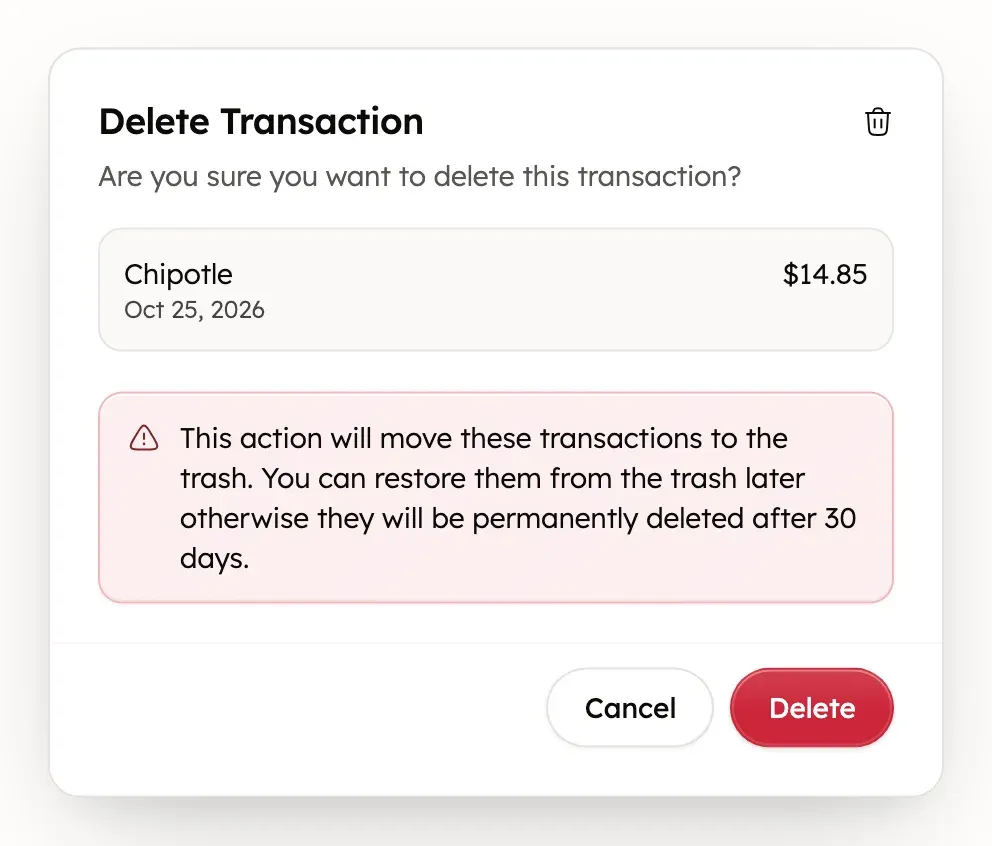
To delete many at once, see edit many transactions at once.
Restore a transaction or empty Trash
Trash keeps deleted transactions for 30 days, then removes them for good.
- In Transactions, select Trash (the bin with a count).
- On a computer, select Open Menu (the ⋯) on a row. On a phone, tap the transaction.
- Select Restore to put it back, or Delete Forever to remove it now. Confirm with Delete Forever, or Confirm Delete Forever on a phone.
On a computer, you can tick several and select Restore or Delete Forever. To empty Trash, select Delete All (on a phone, the bin), then Delete Forever.
Delete Forever and Delete All can’t be undone.
Get help with a transaction
Treasury AI can explain a transaction, but it can’t edit, categorize or delete one for you. You can also open Help & feedback at the bottom of the sidebar, or in Settings on a phone. See What never to send.
Was this helpful?
Related guides
Questions about your own money?
Treasury AI can look through your accounts, budgets and transactions and answer in plain language. Something not working? Email support@treasury.sh.