Help Center Transactions
Search and filter transactions
Search Transactions by name, then use Filter (the funnel) to narrow by category, account, tag or amount and to sort by date, amount or name.
Updated
Search for a transaction
The search box at the top of Transactions finds matches as you type, such as “star” for Starbucks. Capital letters don’t matter.
Search looks at the name, your bank’s original description, your notes, the category, the account and the city. So a renamed bank transaction still turns up under its old name. Search doesn’t look at amounts or tags: use the Amount or Tags filter.
Filter by category, account, tag or amount
- In Transactions, select Filter (the funnel) beside the search box.
- Under Filter by, choose a filter. On a phone, tap it to open it.
- Tick the options you want, or pick one choice for Status and Flow. The list updates straight away.
- Select outside the box to close it. On a phone, select Show results.
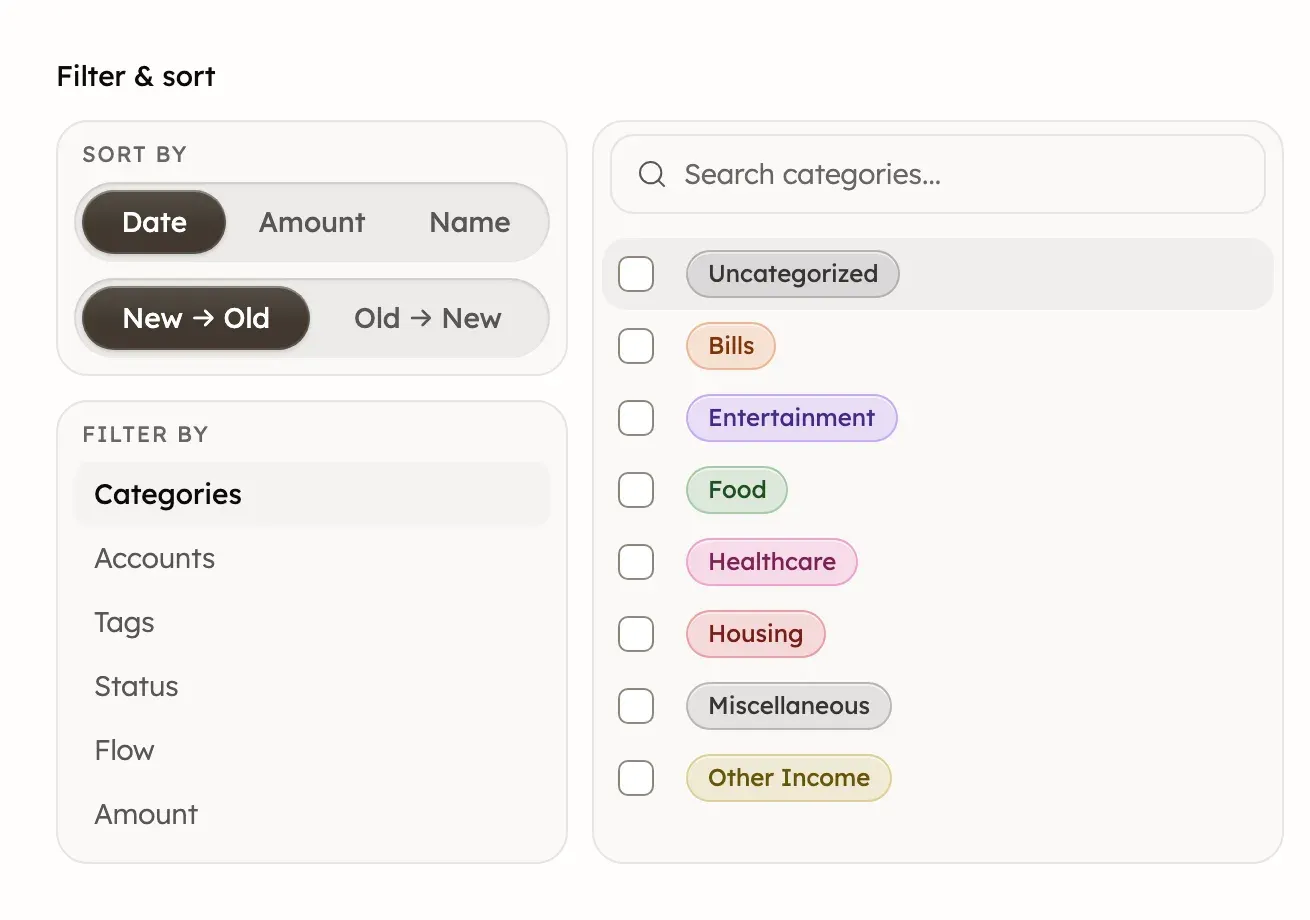
- Categories, including Uncategorized for transactions without one.
- Accounts and Tags.
- Status: Pending or Posted.
- Flow: Money in or Money out. A refund is money in, even in an expense category.
- Amount: a range such as $10 – $50, or your own. It compares sizes in your primary currency, in or out.
A transaction needs to match any option within a filter, and every filter you set. The funnel shows how many options you’ve chosen.
A budget’s page and an account’s page have the same search and Filter. A budget lists only the transactions in its period, categories, tags and accounts, plus uncategorized ones. Excluded transactions don’t appear there. An account’s page and Trash have fewer filters and no sort. In Trash, search matches only the transaction’s name.
Sort by date, amount or name
Transactions shows the newest first, grouped by day.
- In Transactions, select Filter (the funnel).
- Under Sort by, choose Date, Amount or Name.
- Choose the order, such as New → Old, $$$ → $ or A → Z.
Amount sorts by size, so money in and money out mix. Sorting by Amount or Name shows each date under the name instead of day headings.
Clear filters and search
- On a computer, each filter shows as a chip beside the funnel. Select the chip’s × to remove it.
- To remove every filter and the search, select Filter (the funnel), then Clear all. On a phone, select Clear all filters, then Show results.
- If only a search is set, delete the text in the search box.
Clear all keeps your sort order. On Transactions, if No transactions match your filters appears, select Clear filters to see everything in date order. Opening Transactions from the menu also starts with no filters.
What a transaction row shows
On a computer, each row shows the merchant, tags, category, account with its last four digits, and amount. Each day’s heading shows its Net: money in minus money out for the rows shown, without excluded transactions.

- Money in is green with a +, and money out is plain. Money in isn’t always income: refunds count too. A transfer left out of your totals shows ⇄ on a grey amount without a sign.
- A clock before the amount means it’s pending, so the amount may change when it posts.
- ⇄ marks a transfer between your own accounts.
- The exchange icon means the amount was converted from another currency.
- A crossed-out box beside the name means the transaction is excluded.
Phones and narrow windows hide the account and tags. Phones also hide the tick boxes and the ⋯ menu. Tap a transaction to see everything.
If a transaction doesn’t show up
- Check the search box and the funnel’s count for a forgotten filter.
- A deleted transaction stays in Trash for 30 days. See Restore a transaction.
- Search doesn’t match amounts, so use the Amount filter.
- If your bank hasn’t sent it yet, see If new transactions are missing.
If you want to filter by date
Transactions has no date filter. To reach older transactions, sort by Date with Old → New, or page back. On a computer, Rows per page shows up to 50. On a phone, scroll to load more.
A budget’s page lists one period at a time. Treasury AI can list transactions for any dates, such as “Show my Uber rides in March”.
Get help finding transactions
On a computer, Search at the top of the sidebar (⌘K or Ctrl+K) finds pages, budgets, accounts, recurring items, holdings and chats, but not transactions. Type a question and select Ask Treasury about it to ask Treasury AI.
Treasury AI can find transactions by merchant, category, date or amount, but can’t change them. See What Treasury AI can look at. You can also open Help & feedback at the bottom of the sidebar, or in Settings on a phone.
Was this helpful?
Related guides
Questions about your own money?
Treasury AI can look through your accounts, budgets and transactions and answer in plain language. Something not working? Email support@treasury.sh.