Help Center Account and billing
Change your name, email or preferences
Settings → Preferences sets your Home budget, currency, notifications and theme, and Settings → Account changes your name and email.
Updated
Find your settings
Settings is in the sidebar on a computer and in the tab bar on a phone. The Settings page lists:
- Account: your name, which opens your profile, sign-in methods and Delete Account.
- Preferences, Auto-Categorize and Memory.
- Connections, Categories, Tags, Manual Accounts and Data Import.
- Your plan card (Membership on a phone), which opens Subscription.
- Under Support: View documentation, Help & feedback and, in the iPhone app, Rate Treasury.
- Sign Out at the bottom.
Settings → Preferences sets your primary budget, primary currency, transfer handling, notifications and theme.
Without an active subscription, Settings only opens Account, Preferences and Subscription. The other rows show Subscription required. For your plan, see Plans, trial and billing.
Change your name
- Open Settings → Account and select Name.
- In Change Name, enter your First Name and Last Name. Both are required.
- Select Save Changes.
Treasury has no photo upload. If you sign in with Google, Treasury can use your Google picture. Apple sign-in doesn’t share a picture.
Change your email address
- Open Settings → Account and select Email.
- Enter your New Email Address, then select Send Verification Link.
- Open the link Treasury sends to the new address within 24 hours.
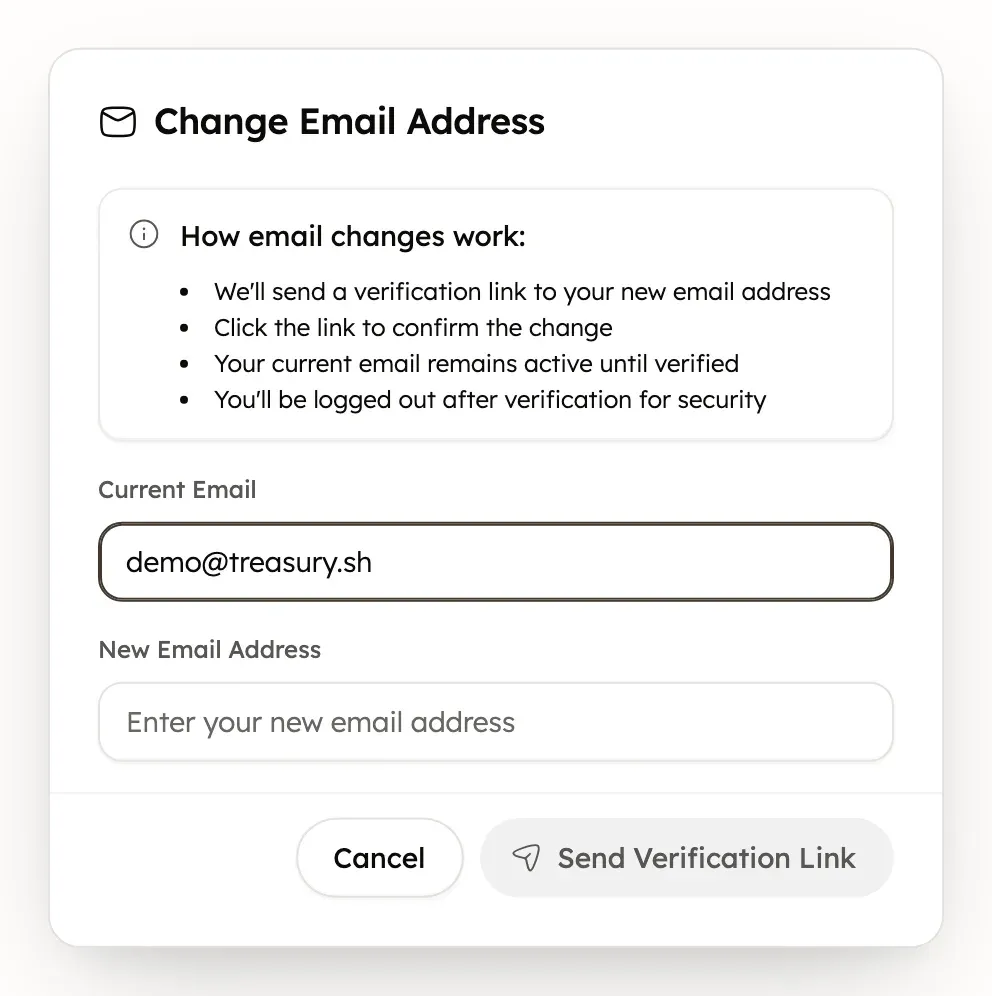
Your current email keeps working until you open the link. Only the latest link works. After the change, Treasury signs you out on every device, so sign in again with the new email. An email another Treasury account uses can’t be added.
Changing your Treasury email doesn’t change the email on your App Store subscription or billing receipts.
To add or remove a passkey, Google or Apple sign-in, see Sign in or recover your account. To close your account, see Delete your account.
Choose how transfers between your accounts are handled
Handle Internal Transfers in Settings → Preferences decides what Treasury does with money moved between your own accounts. See Transfers between your accounts.
Turn notifications on or off
Push notifications in Settings → Preferences turns the Treasury iOS app’s alerts on or off, as Turn notifications on or off explains.
Switch to dark mode
- Open Settings → Preferences.
- Under Theme, select Light, Auto or Dark. Auto follows your device’s setting.
Treasury starts in Light. The theme changes right away. It’s saved in that browser or app only, so set it in each one you use. Sign-in and setup screens always show in Light.
Was this helpful?
Related guides
Questions about your own money?
Treasury AI can look through your accounts, budgets and transactions and answer in plain language. Something not working? Email support@treasury.sh.