Help Center Transactions
Review new transactions
Turbo-Review on Transactions shows each uncategorized transaction in turn, newest first, so you can give it a category, exclude it or fix it.
Updated
What needs review
Treasury has no separate “reviewed” tick. A transaction needs review when it has no category yet. Once it has a category, or you exclude it, it’s done.
The number on Turbo-Review (the lightning bolt) at the top of Transactions is how many are waiting. Excluded and deleted transactions never count.
New transactions from your bank arrive without a category unless Treasury files them for you. To have more filed automatically, see Auto-categorize transactions.
Categorize one at a time in Turbo-Review
Turbo-Review shows your uncategorized transactions one at a time, newest first.
- In Transactions, select Turbo-Review (the lightning bolt). Turbo-Review opens on the newest one.
- Under Category, select a category. Select it again to clear it.
- Select Confirm. Treasury saves the category and moves to the next transaction.
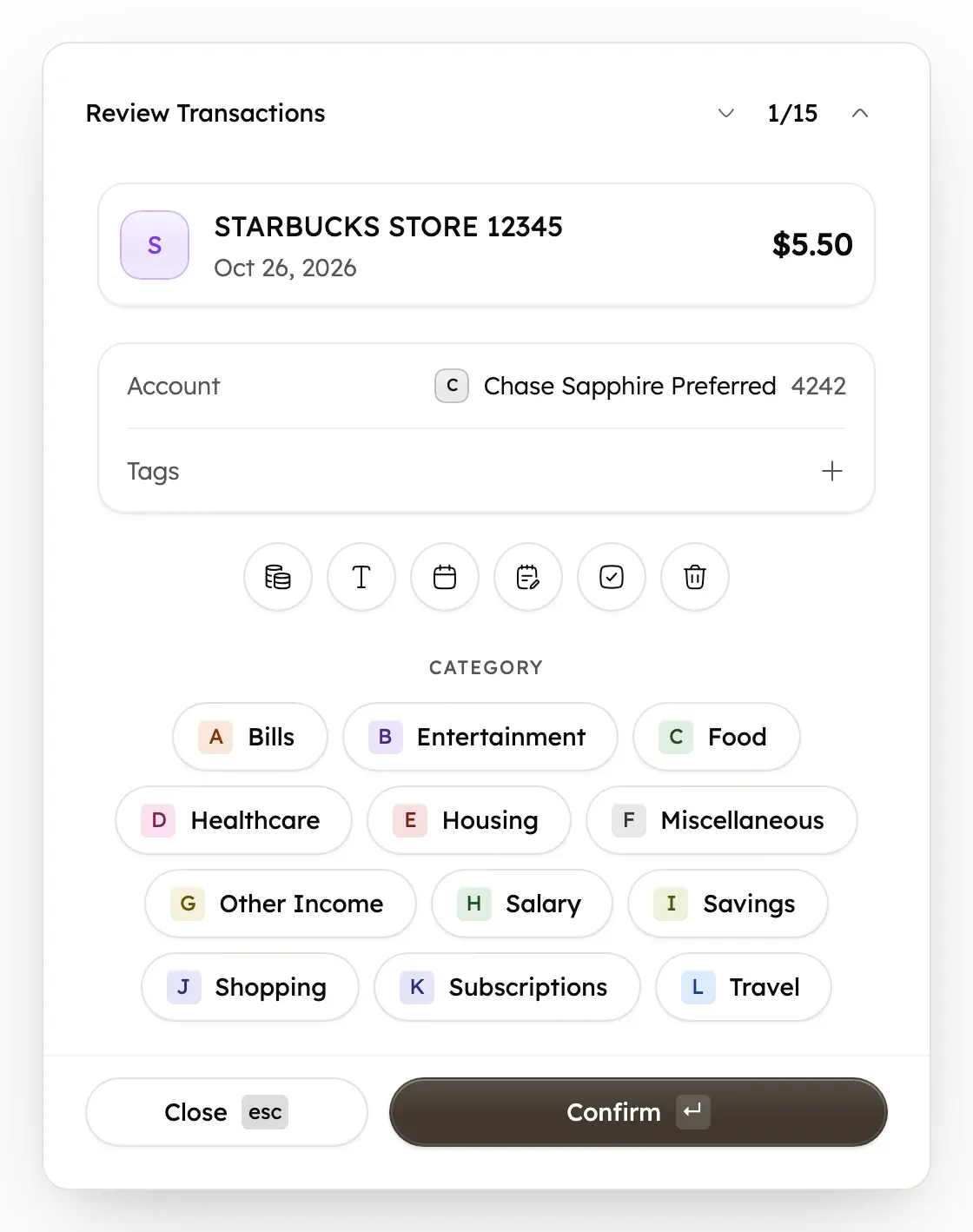
The row of buttons over Category can change the amount, name, date or notes, or delete the transaction. They work the same as in Edit, split or delete a transaction. When nothing is left, Turbo-Review shows No transactions left to review.
Use Turbo-Review keyboard shortcuts
On a computer, Turbo-Review works from the keyboard.
- Press the letter shown on a category to select it, such as A for the first. Only the first 26 categories have a letter.
- Press Enter to confirm and Esc to close.
- Press the up arrow for the next transaction and the down arrow for the previous one.
Shortcuts pause while a box such as Rename Transaction is open. The letters and Enter also work when you edit a single transaction.
Skip a transaction or go back
In Review Transactions, use Next transaction and Previous transaction beside the count, such as 3/15. A skipped transaction stays in the list for later.
Select Close to stop. Transactions you didn’t confirm stay waiting for next time.
If a transaction is still waiting for review
Turbo-Review keeps a transaction until it has a category or is excluded. Changing only its name, amount, date or notes doesn’t take it out.
- To leave something out of your budgets instead, such as a refund you track elsewhere, select Exclude from calculations, then Confirm.
- Pending transactions wait for review too, the same as posted ones.
- Transfers between your own accounts can wait here when Handle Internal Transfers is set to Leave Unreviewed. See Transfers between your accounts.
Categorize many transactions at once
On a computer, the Transactions list can file many transactions in one go.
- In Transactions, filter by Uncategorized.
- Tick the transactions that share a category.
- Select Categorize in the bar that appears, then pick the category.
See edit many transactions at once for the other bulk actions.
Get help reviewing transactions
Treasury AI can explain a transaction or answer questions about your spending. It can’t categorize, edit or delete transactions for you. Treasury itself can categorize new transactions with AI, as Auto-categorize transactions explains. You can also open Help & feedback at the bottom of the sidebar, or in Settings on a phone. See What never to send.
Was this helpful?
Related guides
Questions about your own money?
Treasury AI can look through your accounts, budgets and transactions and answer in plain language. Something not working? Email support@treasury.sh.