Help Center Budgets
Edit, pin or delete a budget
Change a budget with Edit budget (the pencil), star it to pin it, choose which one Home shows, or delete it without touching your transactions.
Updated
Edit a budget’s name, categories or amounts
Editing a budget uses the same four steps as creating one: Details, Categories, Allocate and Review.
- Open the budget, then select Edit budget (the pencil) at the top. In Budgets, you can also open a budget’s ⋯ menu and select Edit.
- Change what you need, and select Next to move through the steps.
- In Review, select Update Budget.
Changes apply to every period, including past ones. Changing Currency relabels the amounts without converting them. See Budgets in another currency. Changing Budget Type doesn’t convert amounts either, so re-enter them in Allocate.
See a budget’s details
Budget details (the info icon) next to a budget’s name shows its Description, Type, Currency, Date Range and Tags. No date restrictions means the budget has no start or end date. To change any of them, edit the budget.
Pin a budget to favorites
Pinned budgets sit at the top of Budgets. On a computer, they also appear under Pinned in the sidebar, which shows up to four pinned items, budgets first.
- In Budgets, select Add to favorites (the star) beside a budget.
- To unpin it, select the star again. In the sidebar, you can also open its ⋯ menu and select Unpin.
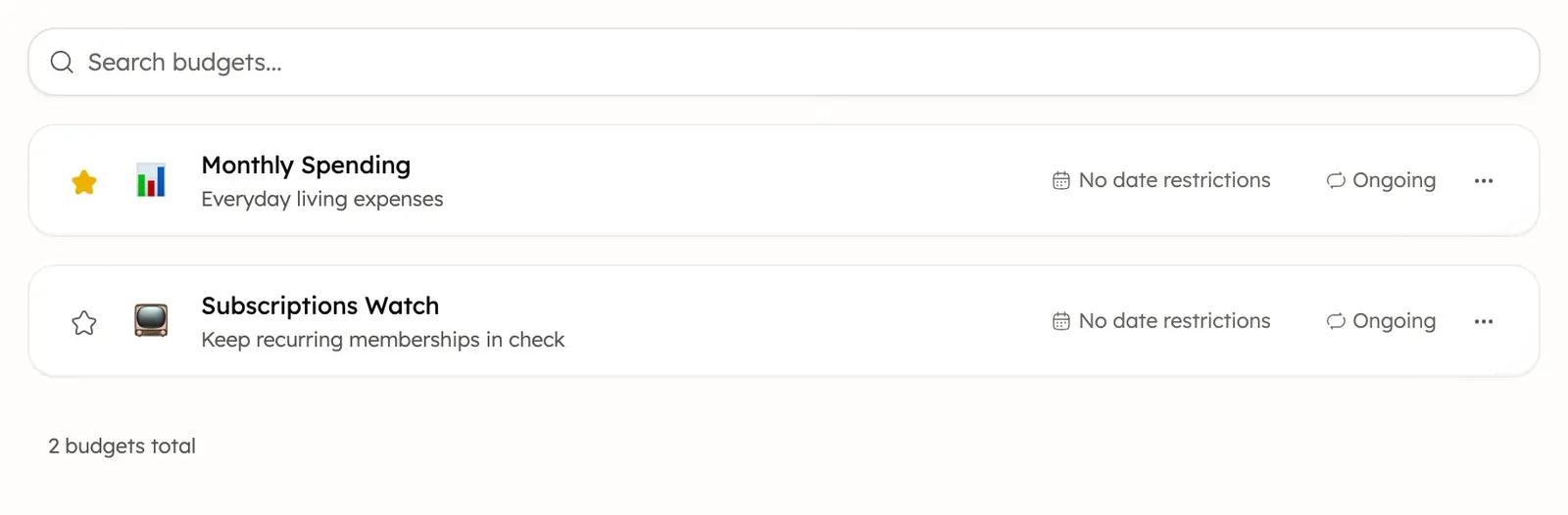
Pinning doesn’t change which budget Home shows.
Choose the budget Home shows
Your primary budget is the one Home features.
- Open Settings → Preferences.
- Under Primary Budget, choose a budget, or None for no budget.
- Select Save Changes.
Delete a budget
- In Budgets, open the budget’s ⋯ menu and select Delete. On a computer, you can also use the ⋯ menu of a pinned budget in the sidebar.
- Confirm with Delete.
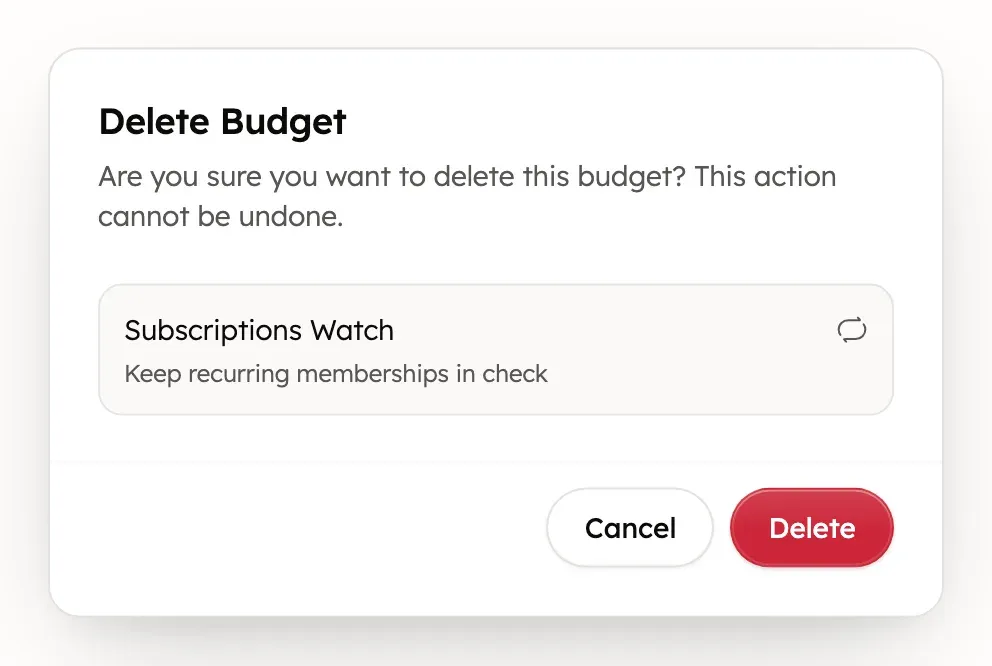
Treasury removes the budget and its category amounts. Your transactions, categories and tags stay as they are. If it was your primary budget, Home and the iOS budget widget show no budget until you choose another.
Deleting a budget can’t be undone. To change one instead, edit it.
If a new category isn’t in your budget
A category you create later isn’t added to your budgets. Its transactions don’t count toward a budget until you add it.
- Edit the budget and go to Categories.
- Choose the new category, then give it an amount in Allocate.
Get alerts about a budget
The Treasury iOS app can warn you when you spend ahead of pace or go over a budget. See When budget alerts are sent.
Was this helpful?
Related guides
Questions about your own money?
Treasury AI can look through your accounts, budgets and transactions and answer in plain language. Something not working? Email support@treasury.sh.