Help Center Account and billing
Sign in or recover your account
Treasury has no passwords, so you sign in with Google, Apple, a passkey or an emailed code, and recover a lost passkey by email.
Updated
Ways to sign in
Treasury doesn’t use passwords, so there is no password to reset. The sign-in page offers four ways in:
- Continue with Google or Continue with Apple uses that account.
- Sign in with Passkey uses Face ID, Touch ID or your device’s screen lock.
- Email me a sign-in code sends a code to your email. It works for every account.
If Sign in with Passkey finds no passkey, Treasury opens Create your account. If you already have an account, sign in with an email code instead. Lost your passkey? See If you lost your passkey or device.
Sign in with an email code
- On the sign-in page, select Email me a sign-in code.
- Enter your email and select Email me a code.
- Enter the 6-digit code from the email and select Sign in. Or open the link in the email and select Continue.
The code and the link expire after 5 minutes, and each works once. Asking again replaces them, so only the newest email works. Each code allows 5 tries. If a code doesn’t work, use the link in the same email. Or select Send a new code or use a different email.
The email only goes to an address that has a Treasury account. If nothing arrives, check your spam folder and the spelling of your address.
Set up a passkey
A passkey is optional. If you sign up with your email, Treasury asks you to Add a passkey. Select Create passkey and confirm with your device.
If you cancel or it fails, Skip for now appears. If you already sign in with Google, Apple or a passkey, it shows straight away. If you skip, you sign in with an email code, and you can add a passkey later.
Add or remove a sign-in method
Settings → Account lists your sign-in methods under Sign-in Methods. Each passkey shows when it was last used. Email is always listed and always works.
To add one, select Add Passkey, Link Google or Link Apple, then follow the prompts.
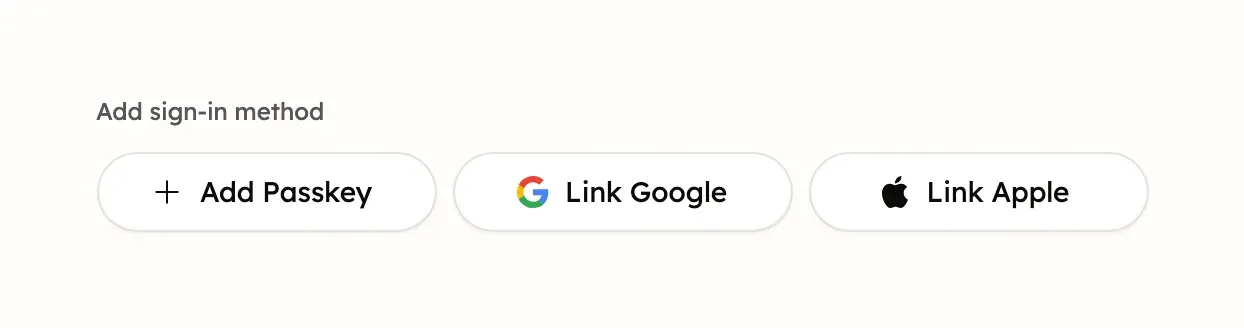
To remove a passkey, Google or Apple, select the × on its row, then confirm. Treasury keeps your last passkey, Google or Apple sign-in, even though email codes still work. A last Google or Apple row has no ×, and removing a last passkey says Cannot remove your only authentication method.
Verify your email when you sign up
When you create an account, Treasury emails a code to confirm your address.
- On Verify your email, enter the code and select Verify Email.
- If it hasn’t arrived, select Resend Verification Token. You can resend every 30 seconds.
The code expires after 5 minutes. If you typed the wrong address, select Wrong email address? to start over. To change the email of an existing account, see Change your email.
Sign out
To sign out or log out of Treasury, open Settings and select Sign Out at the bottom. On a computer, you can also select your name at the bottom of the sidebar, then Sign Out.
During sign-up, select Log Out at the top of Verify your email or Add a passkey, or Sign out on the welcome screen.
Signing out ends your session only on that browser or app. But it signs out Treasury widgets on every iPhone and iPad until you open the app there.
If Google or Apple says you already have an account
Treasury won’t create a second account for an email that already has one. Treasury links Google to your account by itself only when Google manages that email and you’ve verified it in Treasury. Treasury then emails you that Google was added.
Apple is never linked by itself. In either case:
- Sign in another way, such as an email code.
- In Settings → Account, select Link Google or Link Apple.
The Google account must use the same email as Treasury. The Apple ID must too, unless it uses Hide My Email.
Signing in with Apple’s Hide My Email gives Treasury a different address. So if you haven’t linked Apple yet, it creates a second, empty account. Link Apple from Settings → Account instead.
If you lost your passkey or device
Sign in with an email code, then add a new passkey:
- On the sign-in page, select Lost access? Recover your account.
- Enter your email and select Email me a code.
- Within 5 minutes, enter the 6-digit code and select Sign in. Or open the link in the email.
- On Add a passkey, select Create passkey, or Skip for now.
Your new passkey joins your old ones, and Treasury emails you that a passkey was added. You can remove old passkeys in Settings → Account.
If your device was stolen, or you can’t open your email any more, contact support@treasury.sh.
Get help signing in
If no way of signing in works, contact Treasury support by email from the address on your account. Never send a sign-in code or link to anyone, including Treasury.
Was this helpful?
Related guides
Questions about your own money?
Treasury AI can look through your accounts, budgets and transactions and answer in plain language. Something not working? Email support@treasury.sh.