Help Center Transactions
Transfers between your accounts
Treasury marks money moving between your own connected accounts, and Handle Internal Transfers decides if those transfers count, are excluded or deleted.
Updated
What an internal transfer is
An internal transfer is money moving between two of your own accounts. Paying a credit card from checking or moving money to savings are examples. It isn’t income or spending, but your banks record it as money out of one account and into another.
In Transactions, a transfer Treasury detects shows ⇄ beside its amount. Select it to read Transfer between your accounts.

How Treasury spots transfers
Treasury checks transactions from your connected banks as they sync. It looks for:
- Card payments: a payment leaving a connected bank account and arriving on a connected card, with matching amounts within two days. A card’s own “Payment Thank You” or autopay credit is marked even when the paying bank isn’t connected.
- Bank-to-bank moves: money leaving one connected checking or savings account and arriving in another. Both sides need to have posted, with the same amount, within two days. The bank’s description also needs to name the other account or share a reference.
- Wallet cash-outs: a bank transaction naming Venmo, PayPal, Cash App or Apple Cash. That wallet needs to be connected and show the same amount within four days.
Matching amounts alone aren’t enough, so Treasury can miss transfers your bank describes vaguely. Each sync checks the last two weeks, so older transfers from a bank you add later may not be marked.
What Treasury doesn’t count as a transfer
Some money movements look like transfers but aren’t marked:
- Zelle and other payments to people, because the money leaves you.
- Bank transfers to or from an account you haven’t connected. A payment arriving on a connected card is still marked.
- Investment and retirement account moves, and money sent with Wise or Remitly.
- Rent paid through a card service such as Bilt.
- ATM withdrawals, check deposits, and car, mortgage or student loan payments.
To keep one of these out of your budgets, exclude it yourself.
Choose what happens to transfers
- Go to Settings → Preferences → Handle Internal Transfers.
- Select Leave Unreviewed, Exclude from Budget or Auto-Delete. Treasury saves your choice straight away. You need a verified email to change it.
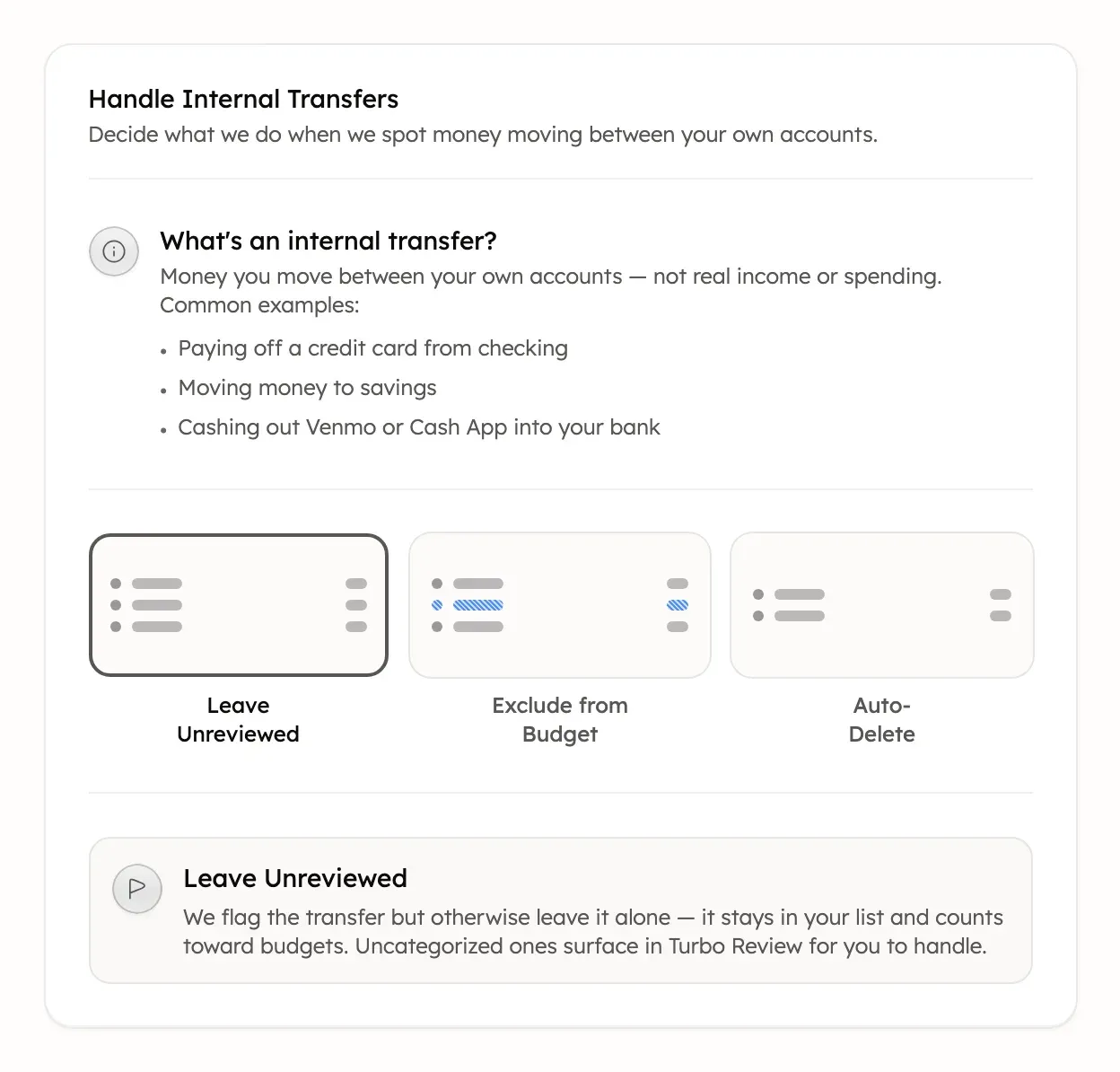
- Leave Unreviewed marks transfers and leaves them in your list and budgets. Uncategorized ones wait in Turbo-Review.
- Exclude from Budget keeps transfers in your list but leaves them out of budgets and totals.
- Auto-Delete moves transfers to Trash. Trash keeps them for 30 days, then removes them for good.
New Treasury accounts start on Exclude from Budget, but older accounts may be on Leave Unreviewed. A change also applies to transfers Treasury already handled, except ones you excluded, included, deleted or restored yourself. Switching away from Auto-Delete brings back the ones still in Trash. For the effect on budget totals, see Budget totals explained.
If a marked transfer still counts
A transfer with ⇄ still counts when Handle Internal Transfers is set to Leave Unreviewed. Check that setting first.
Treasury also applies your setting only to transfers it’s sure of. When it finds a card payment only on your bank account’s side, or a wallet cash-out, it adds ⇄ but leaves the transaction counting. A card payment gets your setting if Treasury later finds the card’s side.
To leave one of these out now, exclude it or delete it.
If a transfer is missed or marked wrongly
Treasury has no button to mark a transaction as a transfer, or to remove the mark. Use the transaction’s own actions instead.
- Missed transfer: in Transactions, select Open Menu (the ⋯) on the row, then Exclude or Delete.
- Wrongly excluded: select Include in the same menu. On a phone, tap it, select Include in calculations, then Confirm.
- Wrongly deleted: restore it from Trash.
On a phone, tap the transaction, then use Exclude from calculations and Confirm, or Delete transaction. After you exclude, include, delete or restore a transfer yourself, Treasury leaves it alone, even if you change Handle Internal Transfers later.
Was this helpful?
Related guides
Questions about your own money?
Treasury AI can look through your accounts, budgets and transactions and answer in plain language. Something not working? Email support@treasury.sh.