Help Center Transactions
Tag transactions
Tags label transactions across categories, such as a trip, and you can create them in Settings → Tags or while tagging a transaction.
Updated
Create a tag
A tag is an extra label you add to transactions, such as “Lisbon trip” or “Reimbursable”. A transaction has one category but can have many tags, so tags can group spending across categories.
- In Settings → Tags, select New Tag (the +).
- In Create Tag, enter a Name of up to 50 characters.
- Optionally add a Description, then select Create.
Each tag needs its own name. Tags don’t change a transaction’s category or amount.
Tag a transaction
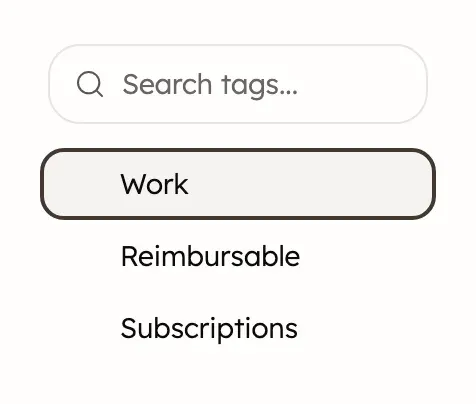
- In Transactions, open the transaction and select its Tags row. On a wide computer window, you can instead select Add tag (the +) or the tags on the transaction’s row.
- Select each tag you want. To make a new one, type its name and select Create ”…”.
- Close the list. From the row, Treasury saves the tags straight away. In an open transaction, select Confirm to save.
To see every transaction with a tag, see Filter by category, account, tag or amount.
Tag many transactions at once
On a computer, the Transactions list can tag many transactions in one go.
- In Transactions, tick the box beside each transaction.
- Select Tag in the bar that appears, then choose one or more tags.
- Select Apply.
A selection covers only the page of transactions you’re on. The Tag list can’t create tags, so create a new one first in Settings → Tags.
Tag replaces the selected transactions’ existing tags with the ones you choose. Selecting Apply with no tags chosen removes all their tags.
Use tags in a budget
A budget can count only transactions with chosen tags. That suits a trip, a wedding or a side project.
- In Budgets, create or edit a budget.
- In the Details step, choose tags under Tags.
The budget then counts only transactions with at least one of the chosen tags. They still need to be in the budget’s categories, so a trip budget should include every category you might spend in. For the other choices in that step, see Choose what the budget includes.
Edit or delete a tag
- In Settings → Tags, open the tag’s Open menu (the ⋯).
- To rename it, select Edit, change the Name or Description, then select Save Changes.
- To delete it, select Delete. If transactions use it, choose Remove tag from transactions or Reassign to another tag.
- Confirm with Remove Tag, Reassign & Delete or Delete Tag.
Deleting a tag never deletes transactions. Reassign to another tag moves transactions but not budgets, so add the new tag to the budget yourself. To delete several tags, tick their boxes and select Delete.
Deleting a tag can’t be undone, and it also leaves any budget that used it. A budget left with no tags stops filtering by tag, so it counts untagged transactions too.
Was this helpful?
Related guides
Questions about your own money?
Treasury AI can look through your accounts, budgets and transactions and answer in plain language. Something not working? Email support@treasury.sh.