Help Center Recurring
Track recurring bills and subscriptions
Recurring puts your bills, subscriptions and income on a calendar, where you can add, edit, pause, end or delete each one.
Updated
How Treasury finds bills and subscriptions
Treasury finds repeating payments in your connected banks’ transactions, using Plaid’s recurring data plus its own check.
Treasury’s own check needs three or more payments with the same name, account and currency in the last six months. They need a regular interval and amounts within about 15%. It skips food and drink, transport and general shopping. So a new subscription may not appear until it has charged a few times, and only Plaid can find a yearly charge. A bill that never passes through a connected account, such as rent paid in cash, needs adding yourself.
What the calendar and totals show
The calendar at the top of Recurring puts each active bill, subscription and paycheck on the date Treasury expects it. Income has a green dot. The large amount is the recurring bills expected in the month shown.
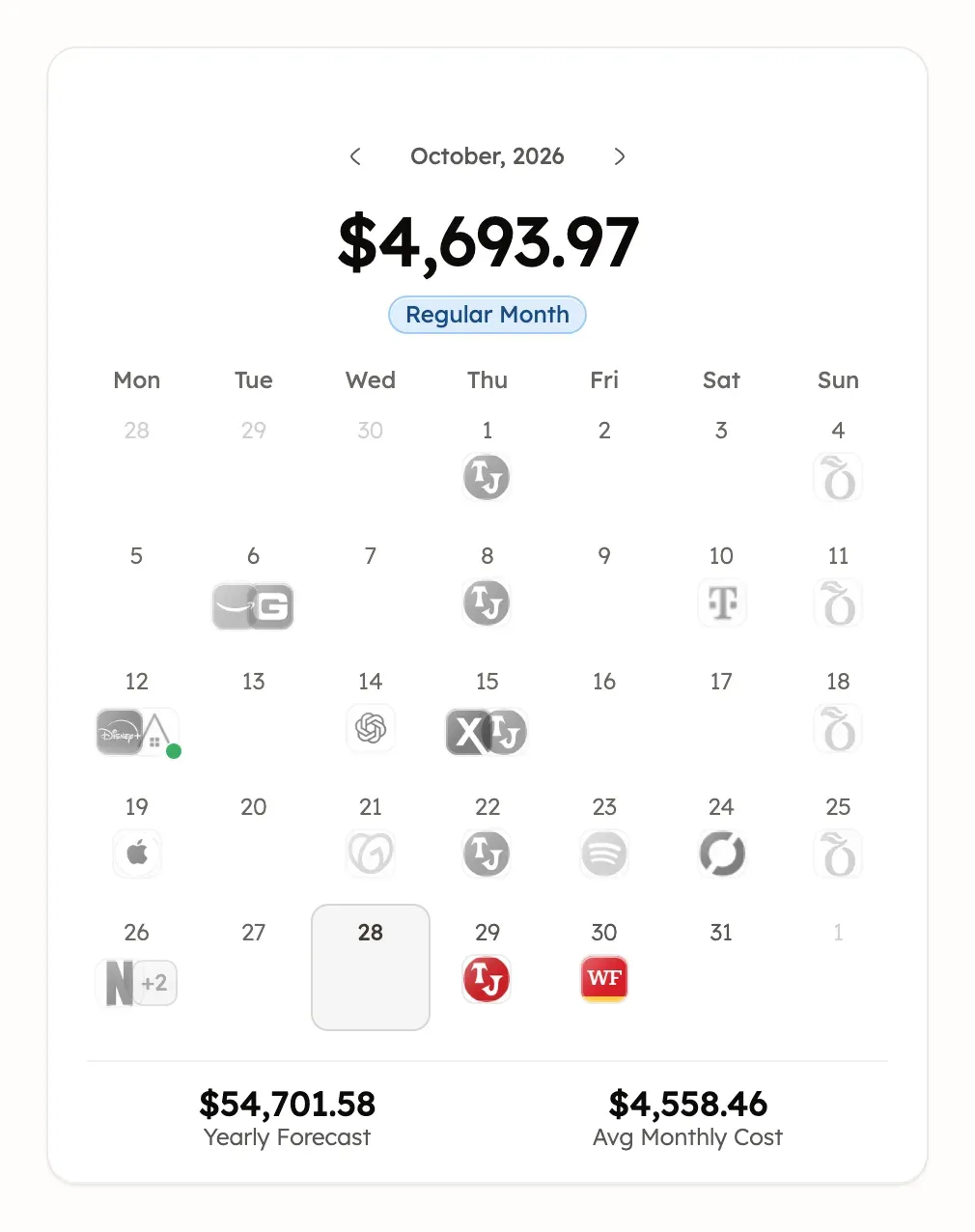
- Regular Month means that month’s bills are within 15% of your average. Light Month is lower and Heavy Month is higher.
- Avg Monthly Cost and Monthly Out are your recurring bills as a monthly average. Monthly In is the same for income.
- Next 7 Days counts the bills due in the coming week.
- Upcoming Expenses and Upcoming Income list the next payments due in the coming 60 days, five at a time. On a computer they sit beside the list. On a phone, they come after it.
Weekly and yearly payments are converted to monthly amounts. For example, a $10 weekly charge counts as about $43 a month. These are example amounts. Paused and ended items don’t count.
Add a bill or subscription yourself
- In Recurring, select Add recurring transaction (the +). If the page is empty, select Add manually.
- In New Subscription, enter the amount and choose Bill or Income.
- Enter a Name, choose a Billing Cycle and set the Start Date of the first payment.
- Optionally choose a Payment Source and Category, then select Add.
Treasury keeps the amount you enter, and the item repeats until you change or end it.
Open an item and link its payments
Select an item in Recurring to open its page. The page shows the amount per billing cycle, the account it’s paid from, the Next payment date and any price change.
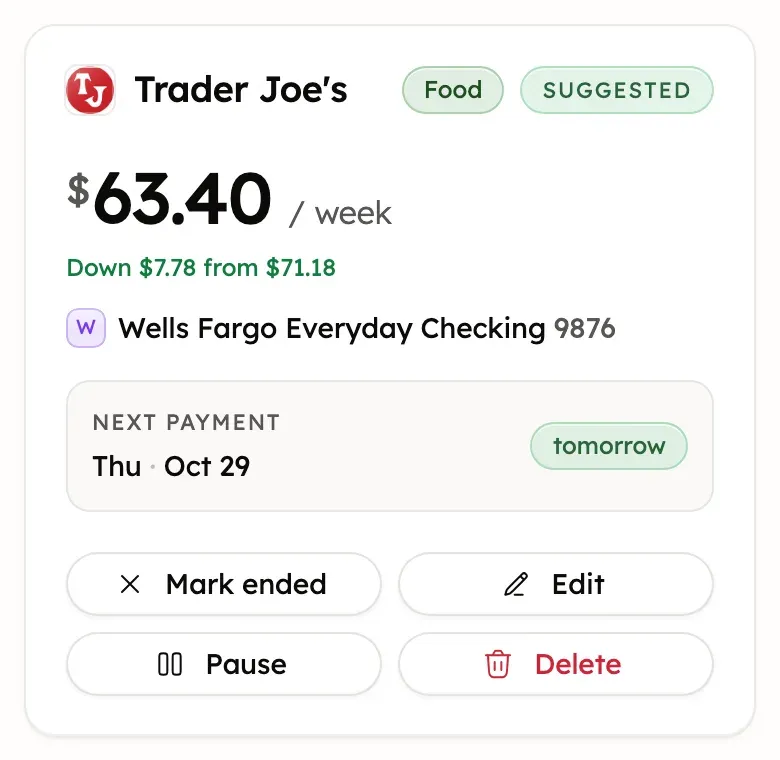
The badge beside the name shows the item’s status.
- Active items are tracked and counted in your totals.
- Suggested items were detected and given a category, and are tracked like Active ones. There’s no separate confirm step.
- Paused items stay in your list but leave totals and the calendar.
- Ended items have left your list.
Detected items without a category wait in the review queue and don’t count until you add them.
The item’s page also lists its linked payments. To add a payment Treasury missed, open it in Transactions and select Mark as recurring (the repeat icon). Its ⋯ menu has the same option as Set recurring, or Change recurring once linked. Choose the item, then select Link transaction. A pending payment can’t be linked until it posts.
- To start a new item from the payment instead, select Create new recurring, check its details, then select Create recurring.
- To take a payment out of an item, open the same dialog, now called Change recurring series, and select Unlink from recurring. The item and the payment both stay.
Edit an item or fix its dates
Recurring dates are estimates from each item’s billing cycle, not the due date on your bill. To correct an item:
- In Recurring, select the item, then select Edit (the pencil).
- Change the Name, Amount, Billing Cycle, Category, Start Date or Payment Source.
- Select Save Changes.
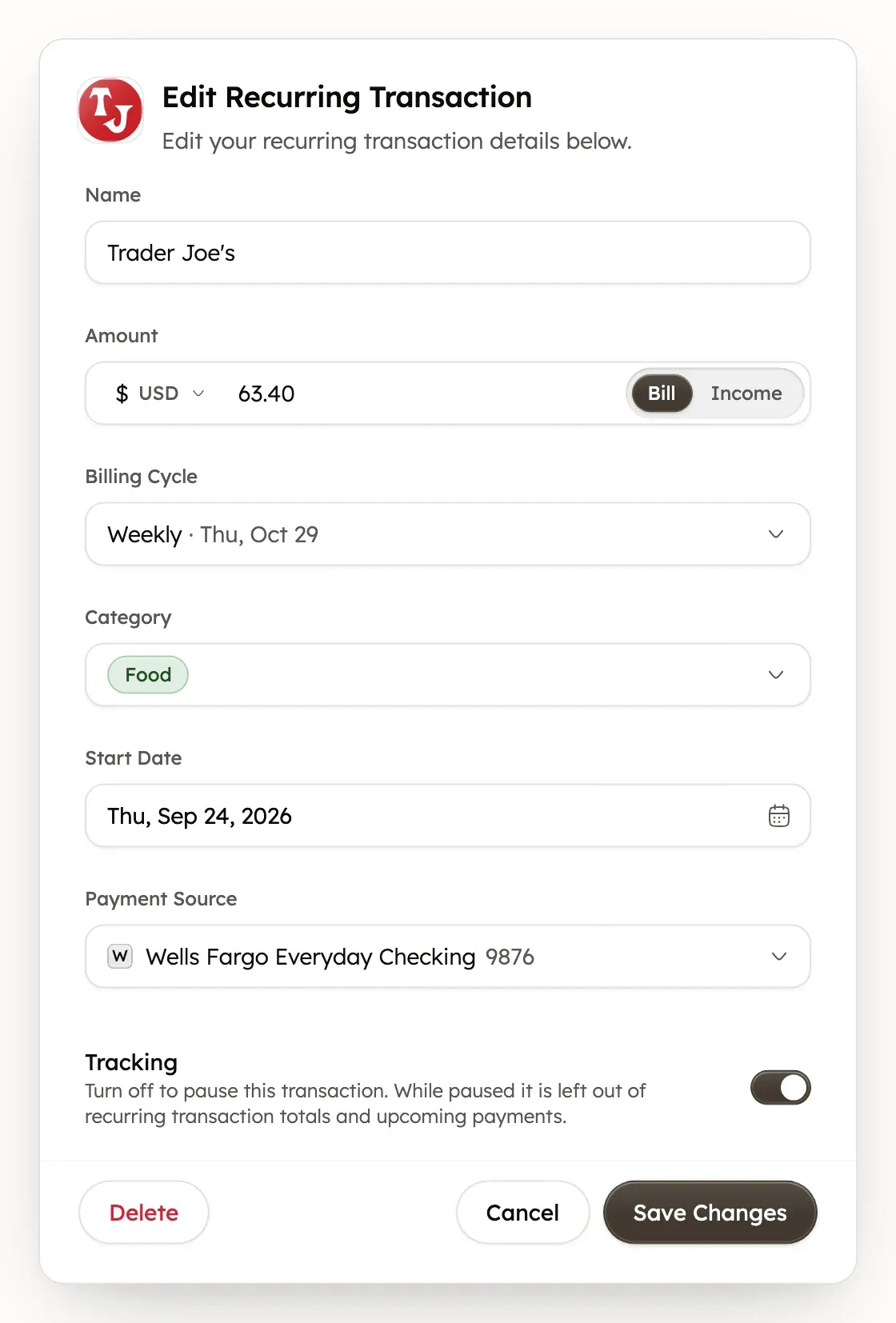
For an item you added, Treasury works out the next payment from Start Date and Billing Cycle. For an item from your bank, the next payment and amount follow its latest charge. A bank sync can update its amount and dates, but keeps the name, billing cycle and category you set. Its account can’t be changed.
An item’s category is separate from its payments’ categories, so changing it doesn’t recategorize transactions.
Pause, end or delete an item
- In Recurring, select the item.
- Select Pause, Mark ended or Delete. On a computer, these are icons at the top right of the item.
- Pause keeps the item in your list but leaves it out of totals, the calendar and upcoming payments. Select Resume to track it again.
- Mark ended is for a payment that stopped for good. The item leaves your list but keeps its history and linked payments.
- Delete asks you to confirm with Delete and reset, or Delete in the edit dialog. Treasury removes the item and unlinks its payments, which stay in Transactions.
None of the three deletes a transaction, changes budget totals or stops the real payment. To bring back an ended item, see Review detected bills.
Deleting a recurring item can’t be undone, and Treasury may detect the same payments again later. To keep its history, select Mark ended instead.
If a subscription stopped or you canceled it
Treasury can’t cancel a subscription, stop a bill or move money. To cancel, contact the company that charges you. Then mark the item ended in Recurring so it leaves your totals.
Treasury shows Possibly inactive on a detected item when its expected payment is more than two billing cycles late. Items you added yourself never show it.
- In Recurring, select the item.
- If the payment stopped, select Mark ended in the Possibly inactive warning.
- If it continues, select Still active. Pick the date under When is this next due?, then select Confirm.
Get help with recurring payments
Recurring items don’t send reminders. Connected credit cards and loans can: see Card and loan payment reminders.
Treasury AI can look at your recurring payments with you, such as what’s due this month. You can also open Help & feedback at the bottom of the sidebar, or in Settings on a phone. See What never to send.
Was this helpful?
Related guides
Questions about your own money?
Treasury AI can look through your accounts, budgets and transactions and answer in plain language. Something not working? Email support@treasury.sh.